Score Card Setup
The Score Card Configurations section is used to create and manage score cards that determine scoring criteria for different types of deals and applicants. Users can define the applicable lease and applicant types, assign a base score, and associate business rule groups with the score card. This allows score cards to be configured according to specific business requirements and applied consistently during the relevant evaluation process.
To manage score cards, follow these steps:
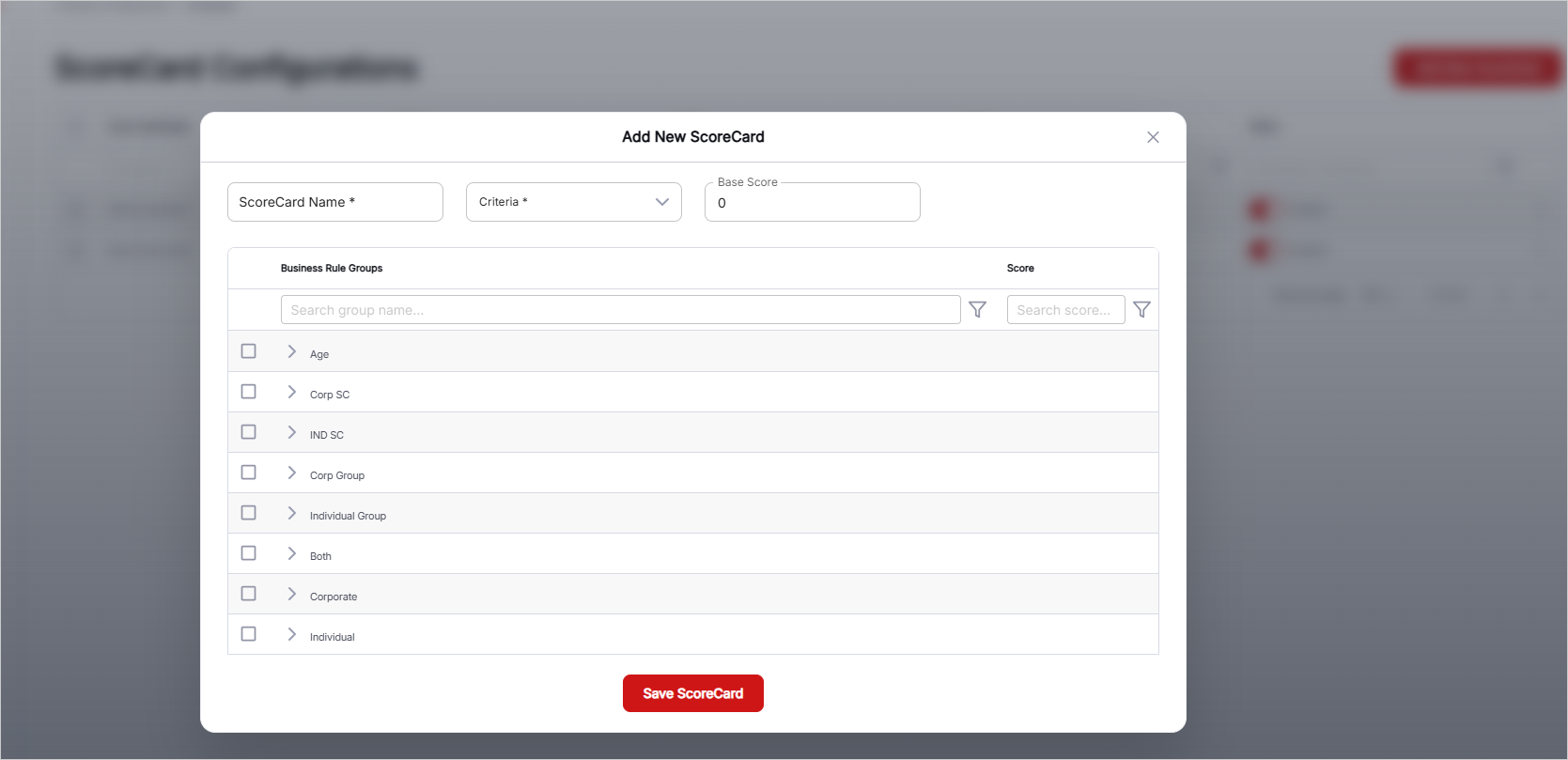
- Add New Score Card: Click this button to create a new score card. Define the score card name, applicable criteria, base score, and business rule groups.
- Score Card Name: Enter the name of the score card. This name identifies the score card and can be referenced whenever needed.
- Select Criteria: Define the criteria for which the score card should apply. a. Lease Type: Select one or more lease types using the check boxes. Options may include All, Operating Lease, Hire Purchase, and other configured lease types. b. Applicant Type: Select one or more applicant types using the check boxes. Available options include All, Individual, and Corporate.
- Input Base Score: Enter the base score as an integer value for the score card.
- Select Business Rule Groups: Select one or more business rule groups to associate with the score card. Available options may include Age, Corp SC, IND SC, and other configured business rule groups.
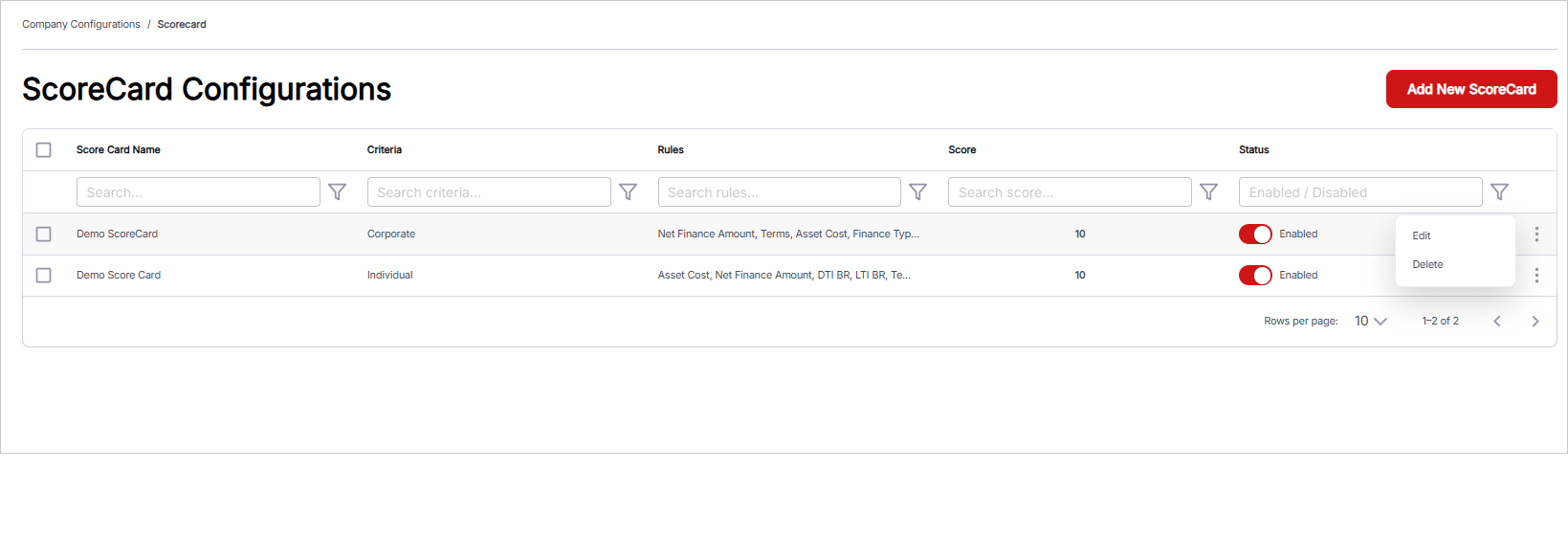
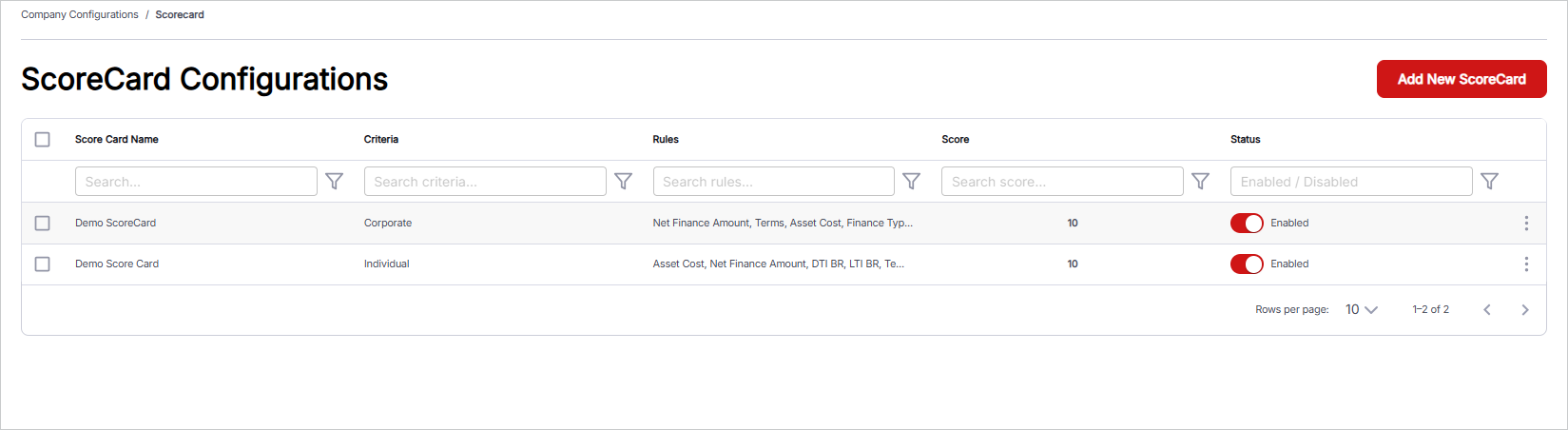
- Manage Existing Records: Existing score cards are displayed in a tabular format. A Search Bar is available on each column to filter records based on search criteria, including Score Card Name, Criteria, Rules, Score, and Status. The Status indicates whether the score card is Enabled or Disabled. An ellipsis menu is available on the right side of each record to Edit/Delete the respective score card.