Create/Edit Rules
The Create/Edit Rules section is used to create and manage business rules that define conditions for specific business scenarios. Users can specify the applicant types to which a rule applies, define its validity period, associate it with a rule group, and configure one or more conditions. These configurations allow business rules to be defined and maintained according to the required business logic.
To manage business rules, follow these steps:
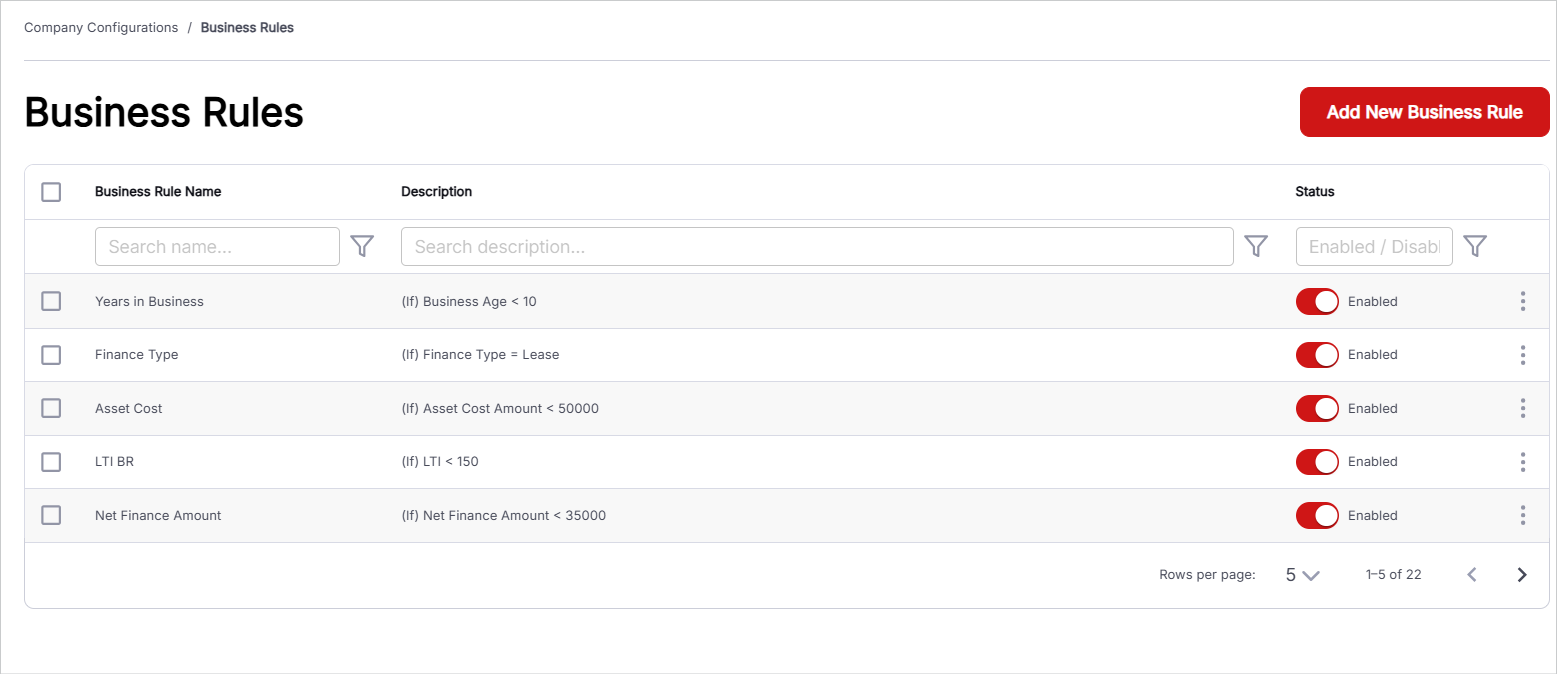
- Add New Business Rule: Click this button to create a new business rule. Define the applicant type, rule name, validity period, associated group, and required conditions.
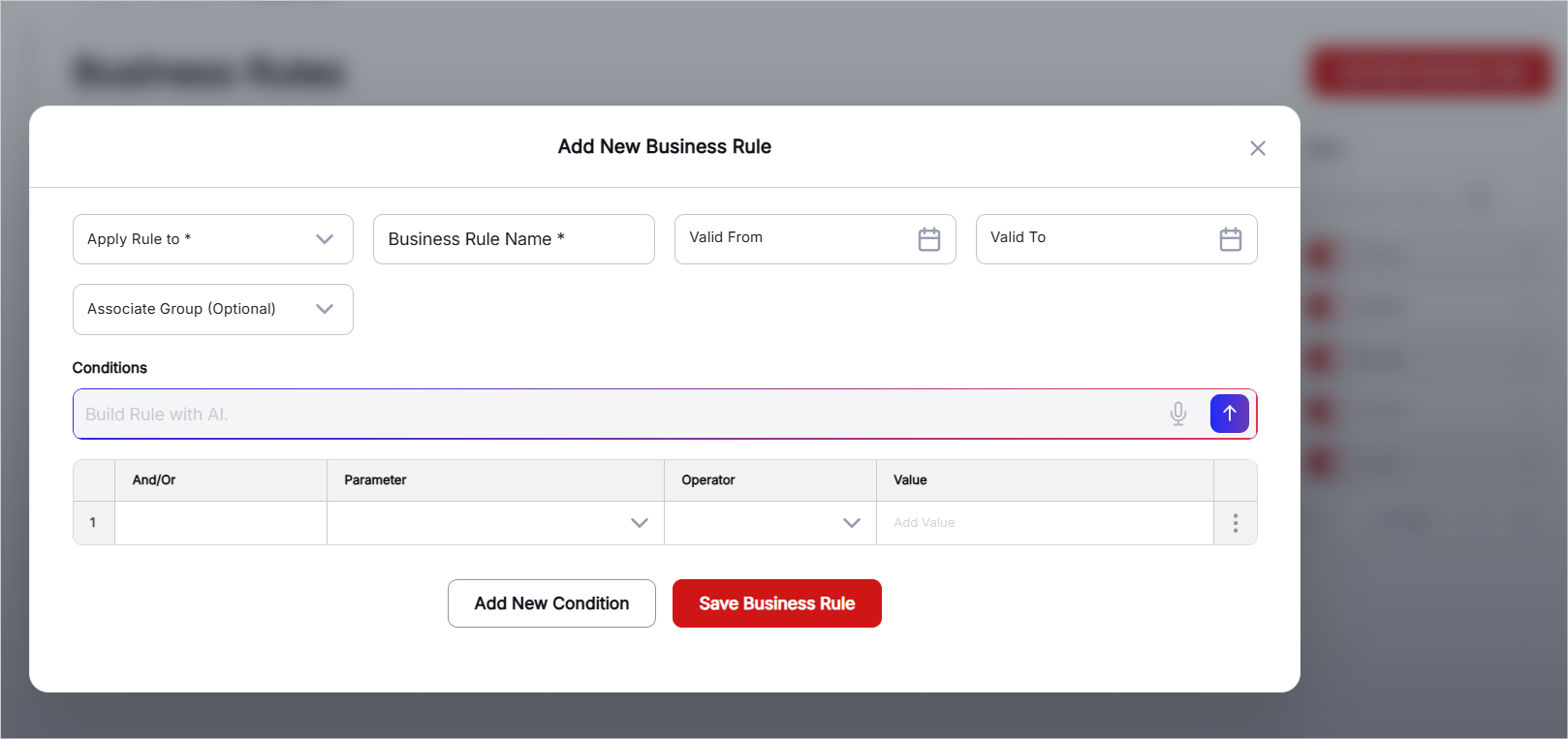
- Apply Rule To: Select the applicant types to which the business rule applies using the check boxes. Available options include Individual, Corporate, and Both.
- Input Business Rule Name: Enter a name for the business rule. This name identifies the rule and can be referenced whenever needed.
- Select Valid From: Select the date from which the business rule becomes effective.
- Select Valid To: Select the date until which the business rule remains effective.
- Select Associated Group (Optional): Select a rule group to associate with the business rule. Available options include All and the individual rule groups configured under Rules Group. This field is optional.
- Define Conditions: Configure the conditions that determine when the business rule is applicable. The condition section includes the following fields: a. And/Or: Specify how multiple conditions should be combined. b. Parameter: Select or define the parameter on which the condition is based. c. Operator: Select the operator used to evaluate the parameter. d. Value: Enter or select the value against which the parameter is evaluated.
- Add New Condition: Click this option to add additional conditions to the business rule. Multiple conditions can be combined using the And/Or selection.
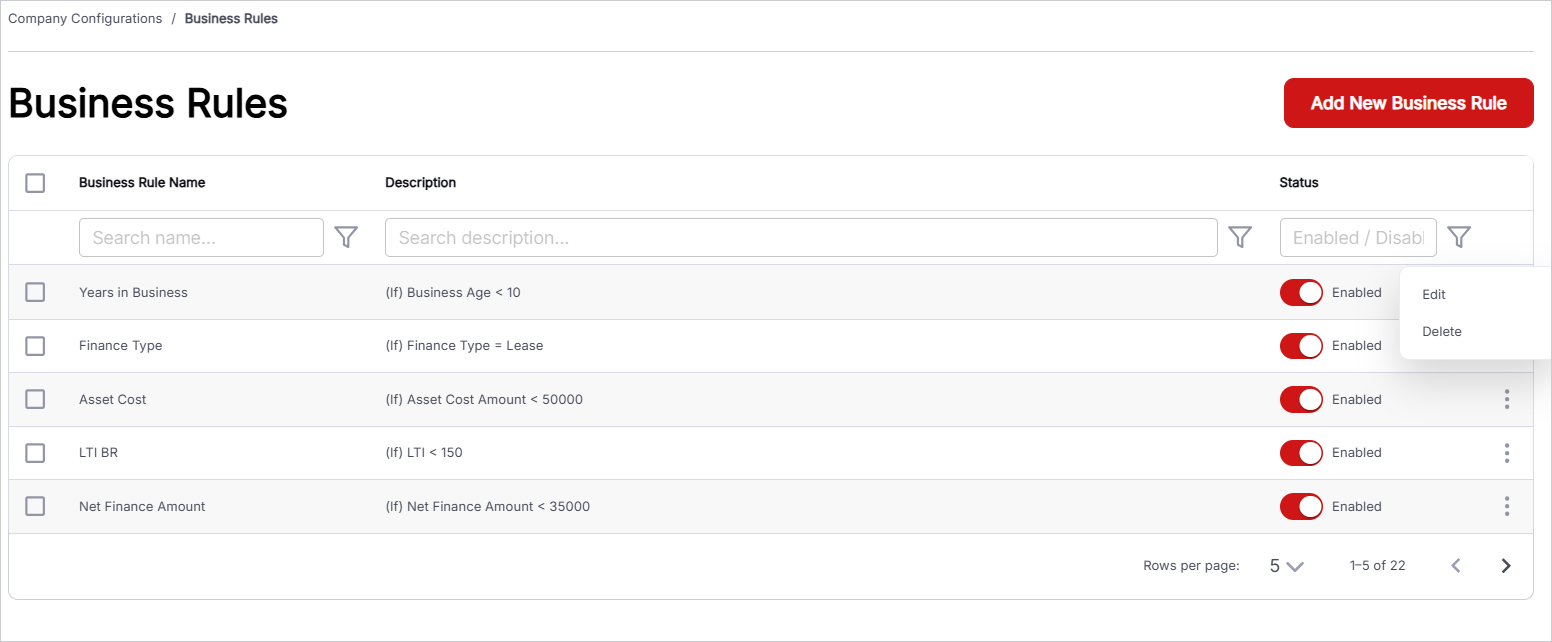
- Managing Existing Records: Existing business rules are displayed in a tabular format. A Search Bar is available to filter records based on the available columns. The table displays Business Rule Name, Description, and Status. The Status indicates whether the rule is Enabled or Disabled. An ellipsis menu is available on the right side of each record to Edit/Delete the respective business rule.