Entity Profile
The Entity Profile allows users to manage and maintain detailed profile information for each entity. This section includes configuration options for available deal types, finance types, asset categories, asset types, contact information, and address details. It also provides personalization settings that allow users to apply company-level branding or define entity-specific branding. By consolidating these settings into a single profile, the Entity Profile ensures that entity information and preferences are accurately maintained within the system.
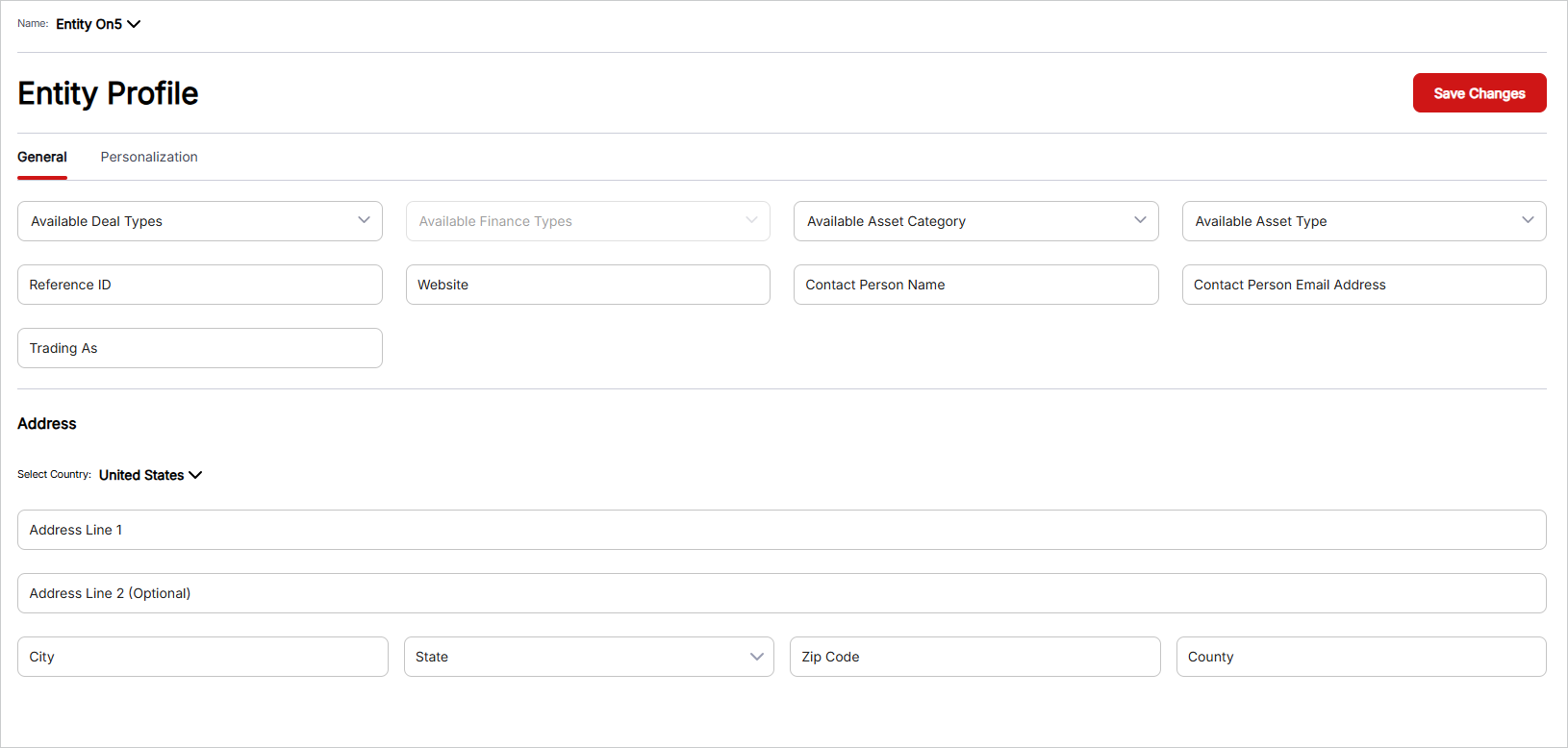
Note: Users must select an entity from the Entity drop-down list, which includes enabled entities defined under Entity Management, before configuring profile settings.
General
The General tab is used to manage the entity’s business, financing, asset, contact, and address details. This tab allows users to define the types of deals and assets available to the entity, along with the entity’s contact and business information.
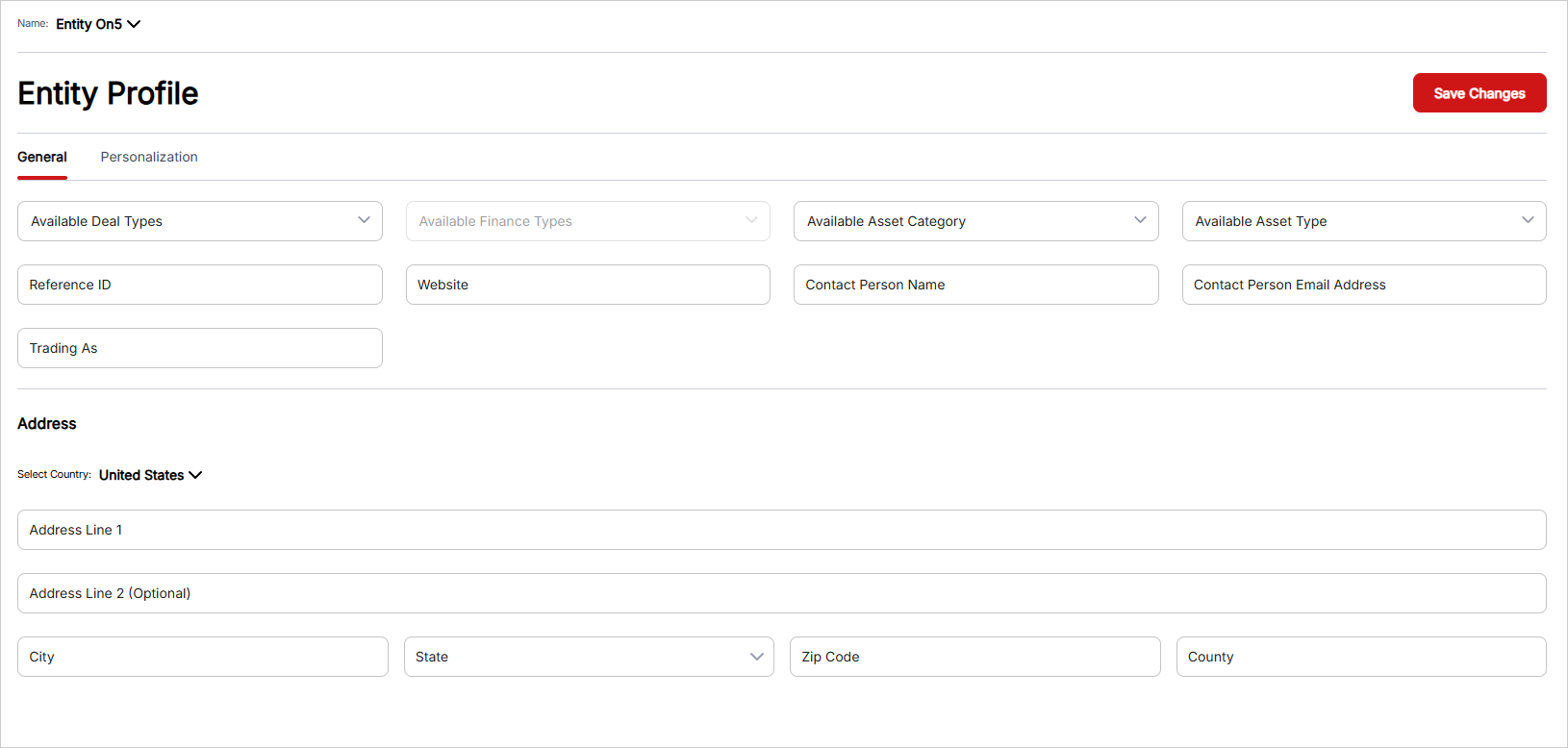
To manage general entity information, follow these steps:
- Select Options from Available Deal Types: Choose the deal types available to the entity. Options include All, Financing, and Cash.
- Select Options from Available Finance Type: Choose the finance types available to the entity. This option is enabled when a finance-related deal type is selected. Available options may include All, Lease, Finance, and other configured finance types.
- Select Options from Available Asset Category: Choose the asset categories available to the entity. Options include All, Soft, and Hard.
- Select Available Asset Type: Choose the applicable asset type from the drop-down list. The available options are based on the previously selected Asset Category.
- Input Reference ID: Enter the reference ID associated with the entity. This identifier can be used to reference the entity where required.
- Input Website: Enter the website URL associated with the entity.
- Input Contact Person Name: Enter the name of the primary contact person for the entity.
- Input Contact Person Email Address: Enter the email address of the primary contact person for the entity.
- Input Trading As: Enter the alternate business name or “trading as” name of the entity.
Entity Address
The Address section is used to manage the entity’s address details. Select the appropriate Country to provide the relevant address information, including Address Line 1, Address Line 2, City, State, ZIP Code, and County.
Personalization
The Personalization tab enables users to customize the visual appearance of an entity’s profile. Users can choose to use the company-level personalization settings or define entity-specific branding settings.
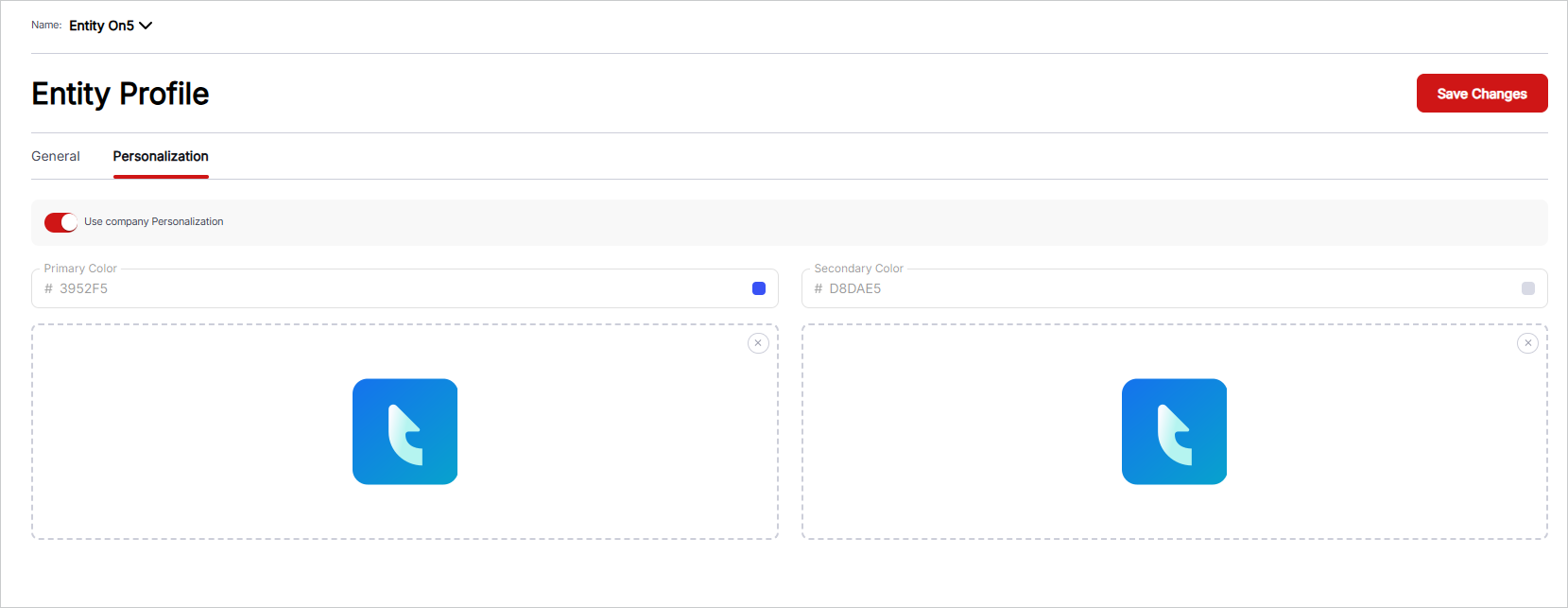
Note: The Use Company Personalization option allows users to apply the company-level personalization settings to the entity. When this option is Disabled, users can define the entity’s own personalization settings.
To manage entity personalization, follow these steps:
- Select Use Company Personalization: Enable or disable the Use Company Personalization option. When enabled, the entity uses the company-level personalization settings.
- Primary Color: When company personalization is disabled, define the entity’s primary brand color.
- Secondary Color: When company personalization is disabled, define the entity’s secondary brand color.
- Upload Images: When company personalization is disabled, upload the images required for the entity’s branding.