Task Queues
The Task Queues module in Check serves as the central workspace for credit analysts and underwriters to manage two types of decision requests: Credit Requests and Funding Requests. These are displayed in separate tabs for streamlined navigation. Each tab presents a searchable, filterable table of all incoming requests and supports assignment, review, and decision-making directly from the interface.
Credit Requests
The Credit Requests tab displays a real-time queue of applications requiring credit evaluation. At the top of the screen, users can view a summary count of requests by status: New, Approved, Conditioned, and Declined.
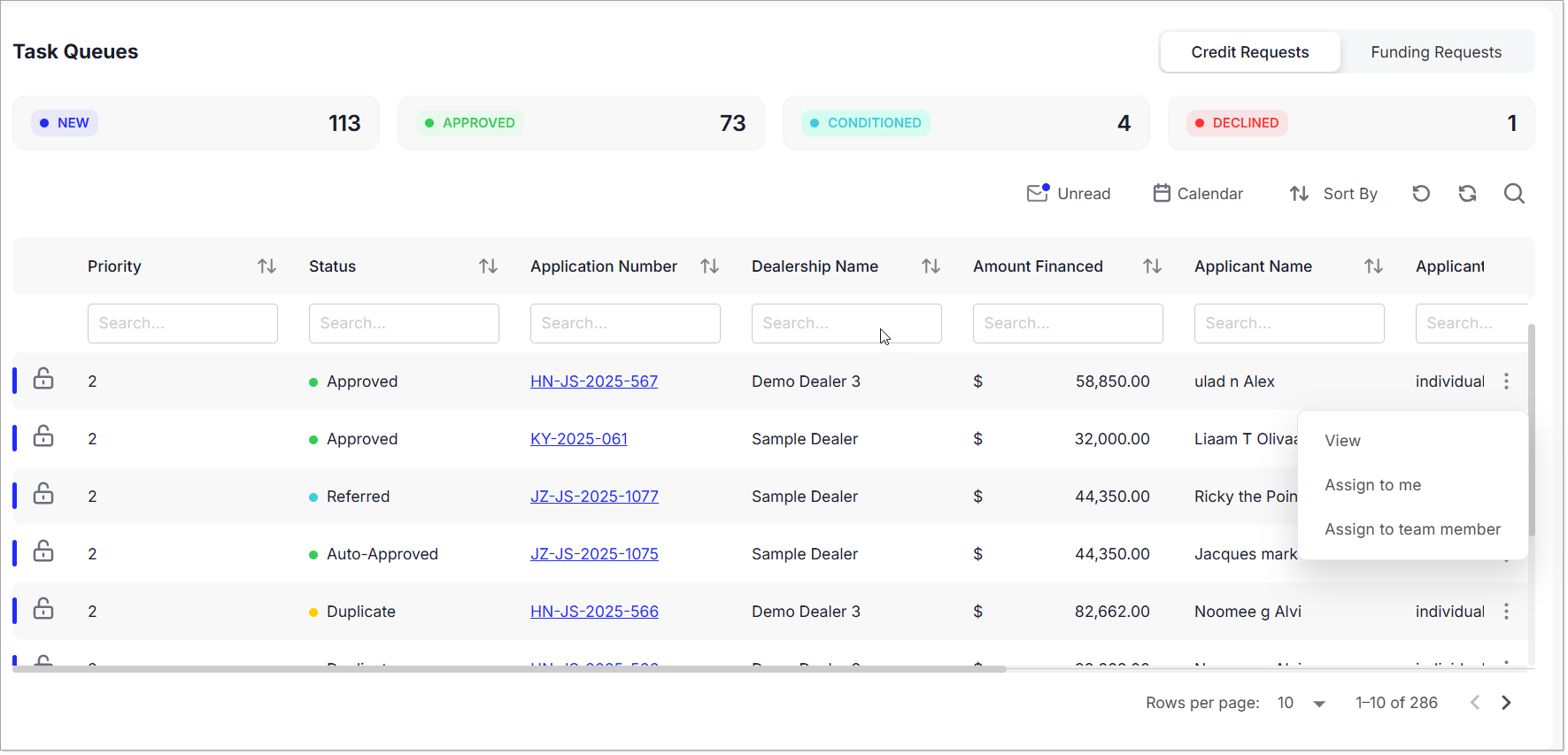
All credit requests are listed in a searchable, sortable table with the following columns: Priority, Status, Application Number, Dealership Name, Amount Financed, Applicant Name, Applicant Type, Assignee, Request Time, and Last Updated.
Each row in the table includes an ellipsis menu with the following options:
- View – Open the application to review and take action.
- Assign to Me – Claim the request for personal review.
- Assign to Team Member – Delegate the request to a colleague.
Clicking on a credit request opens a decision window that includes detailed sections:
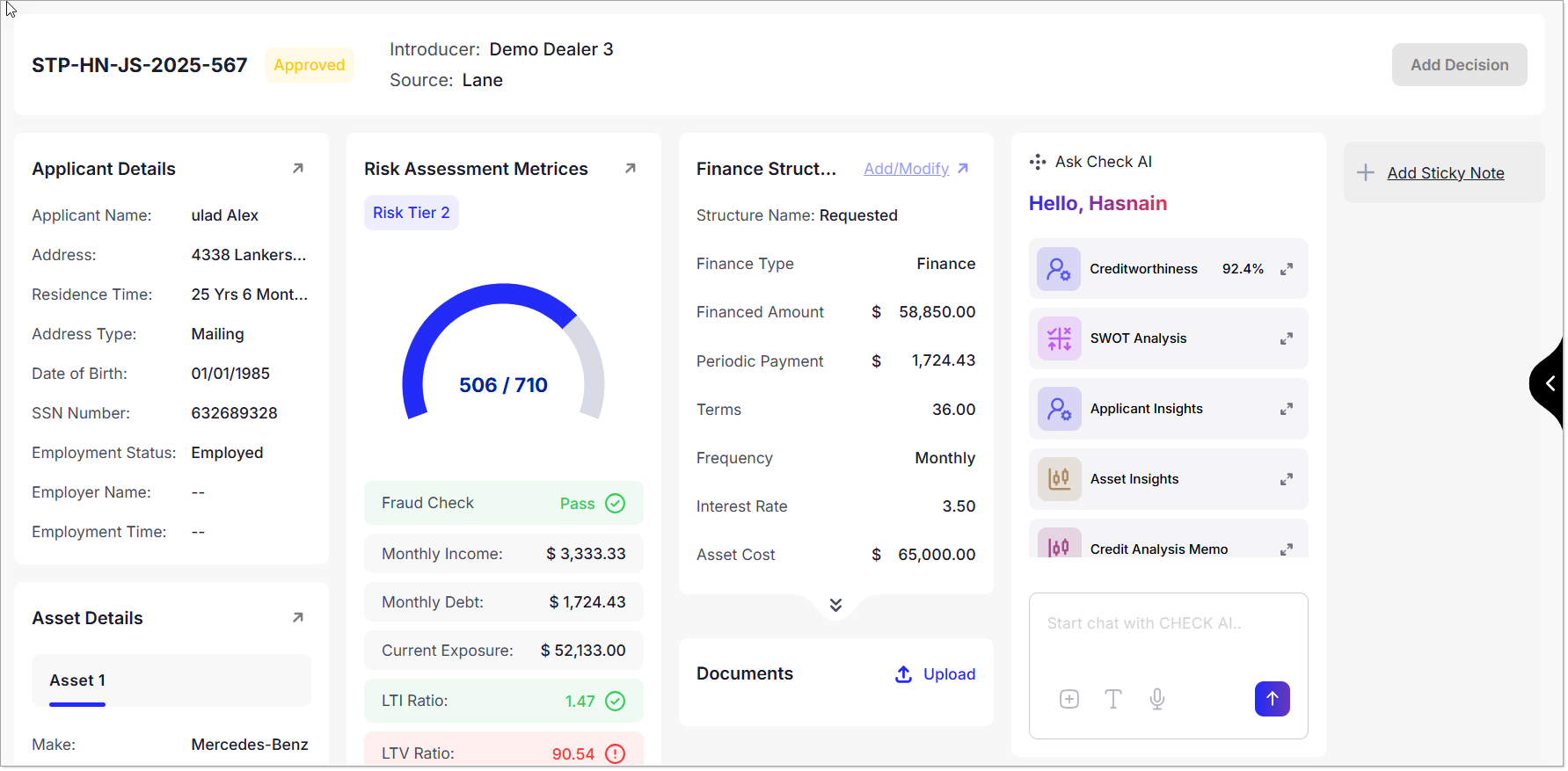
- Applicant Details
- Asset Details
- Third-Party Response
- Documents
- Compliance Checklist
- Receivables
- Payables
- Amortization Details
Within the same window, users can utilize Check AI by selecting from intelligent tools such as:
- SWOT Analysis
- Applicant Insights
- Asset Insights
- Credit Analysis Memo
- Stipulation Suggestions
- Credit Analytics
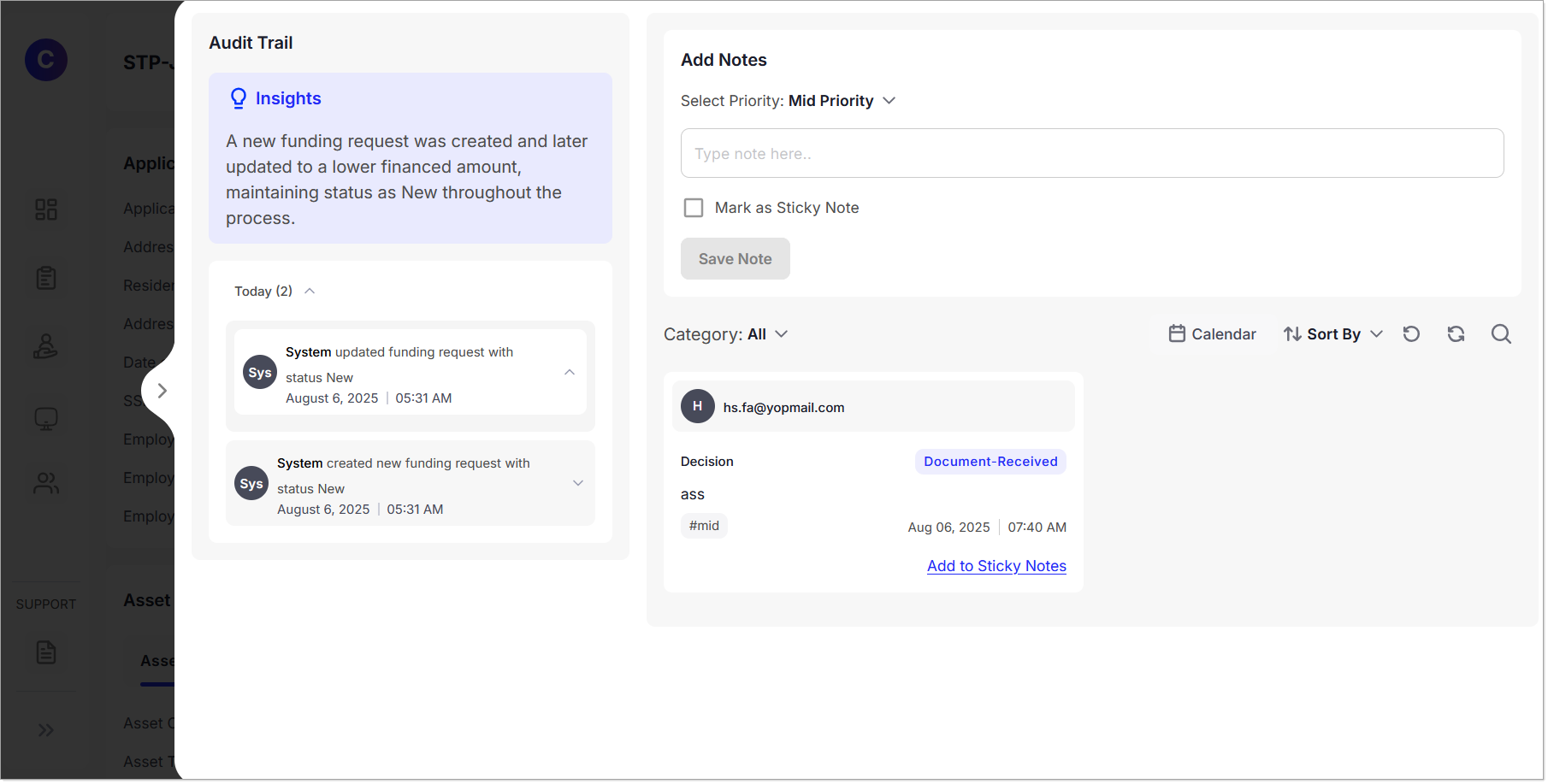
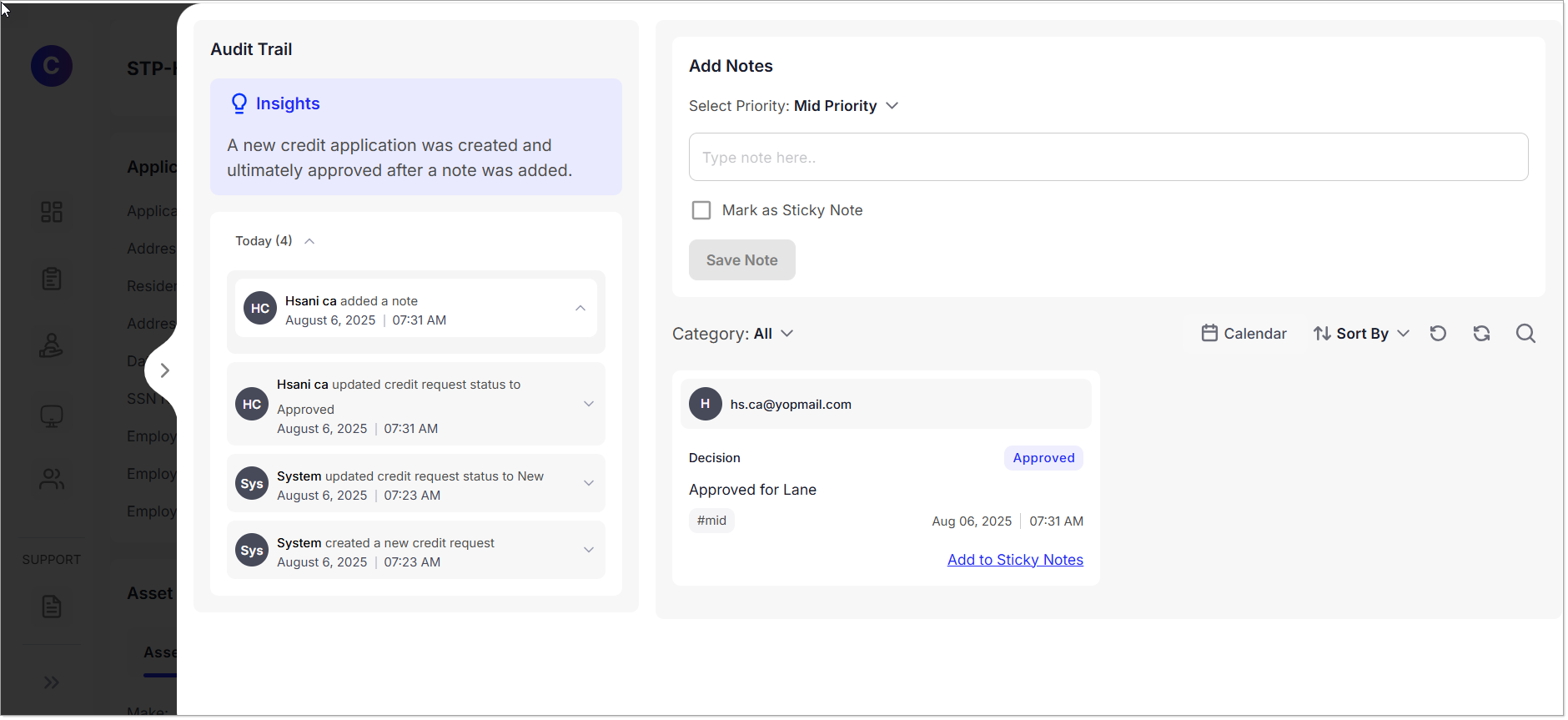
Additionally, users can access the Audit Trail via a popup panel located on the right-hand side of the screen, which logs all user actions and status changes for compliance and tracking.
Funding Requests
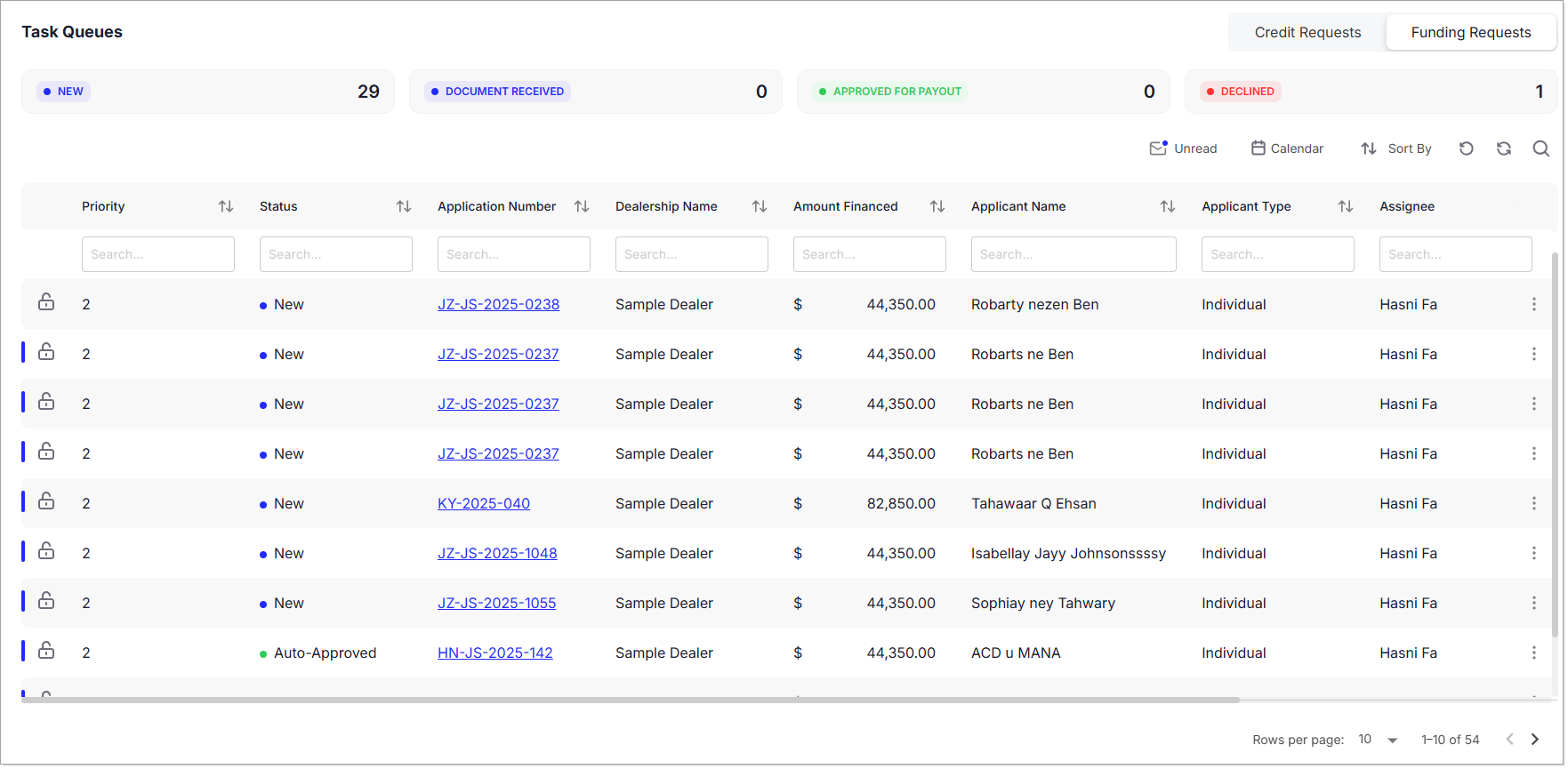
The Funding Requests tab provides a similar structure and functionality as the Credit Requests tab, tailored for handling applications ready for funding evaluation. At the top of this screen, users can view the number of requests categorized as: New, Approved, Approved for Payout, and Declined.
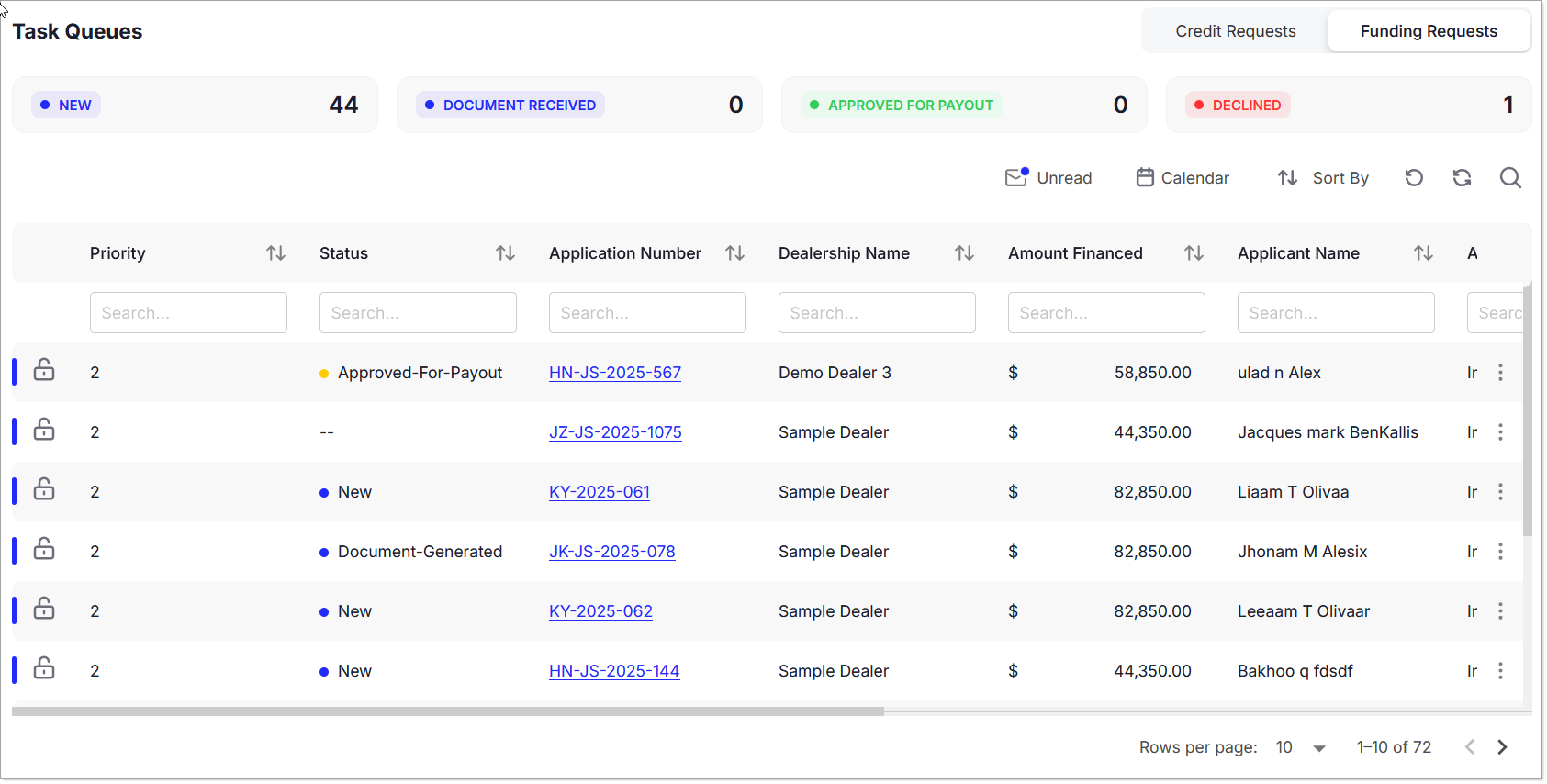
Requests appear in a tabular format with the same set of columns: Priority, Status, Application Number, Dealership Name, Amount Financed, Applicant Name, Applicant Type, Assignee, Request Time, and Last Updated.
Each request features an ellipsis menu with these actions:
- View – Review details and initiate a funding decision.
- Assign to Me – Take ownership of the request.
- Assign to Team Member – Assign to another user for action.
Clicking a funding request opens a detailed decision window similar to that of credit requests, allowing users to view:
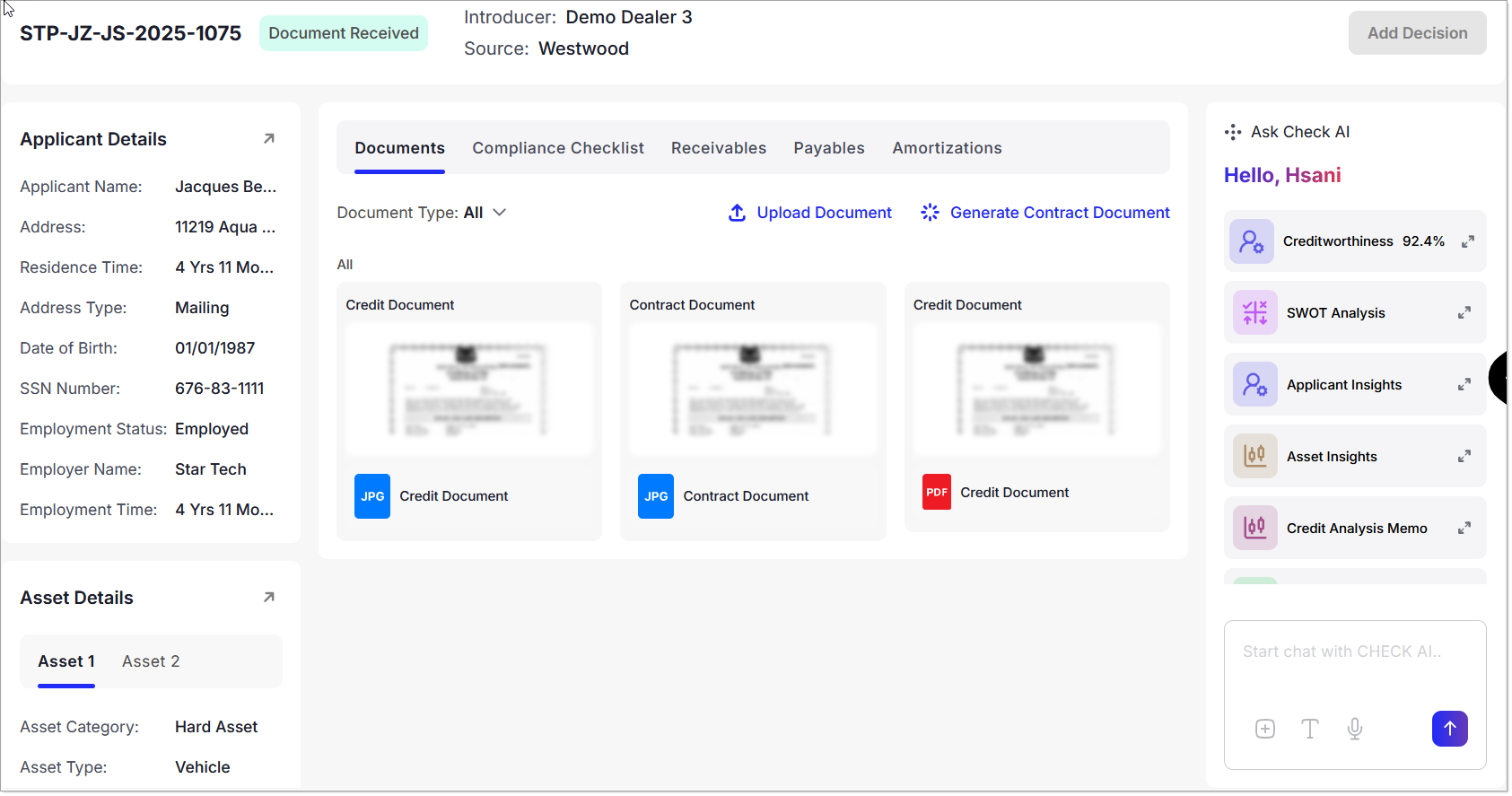
- Applicant Details
- Asset Details
- Third-Party Response
- Documents
- Compliance Checklist
- Receivables
- Payables
- Amortization Details
AI-powered decision support is also available through the Check AI options:
- SWOT Analysis
- Applicant Insights
- Asset Insights
- Credit Analysis Memo
- Stipulation Suggestions
- Credit Analytics
An Audit Trail panel is accessible via a popup on the right-hand side, displaying a chronological log of all actions taken on the request.